



Bouw een web-gebaseerde Arduino-thermometer met DS18B20-sensor
Onderdelen en benodigdheden
| Arduino UNO | 1 |
| PHPoC WiFi Shield voor Arduino (kan ook PHPoC Shield zijn) | 1 |
| Adafruit DS18B20 temperatuursensor | 1 |
| Seeed Weerstand 4,7k ohm | 1 |
| Krimpslang | 1 |
Over dit project
Als beginner leer je hier over WiFi en sensoren in Arduino – raadpleeg de tutorials Wifi en Arduino en DS18B20 temperatuursensor. Een vergelijkbaar project met alleen PHPoC is hier te vinden.
Demo
Zie de afbeelding hierboven voor een visuele demonstratie.
Dataflow
Arduino → PHPoC WiFi Shield → Webbrowser
De Arduino leest de temperatuur van de sensor en stuurt de waarde naar de PHPoC WiFi Shield. Deze stuurt de waarde via WebSocket naar de webbrowser, waar een JavaScript-functie de temperatuur op het scherm visualiseert.
Let op: De PHPoC-shield heeft een ingebouwd programma om data van de Arduino door te sturen naar de browser. Je hoeft je daar niet om te bekomen.
Wat we moeten doen
- WiFi-instellingen voor de PHPoC-shield instellen (SSID en wachtwoord)
- Nieuwe web-UI uploaden naar de PHPoC-shield
- Arduino-code schrijven en uploaden
WiFi-instellingen voor PHPoC-shield
Volg deze instructie.
Nieuwe web-UI uploaden naar PHPoC-shield
- Download de PHPoC-broncode
remote_thermometer.php(in de codectie). - Upload het naar de PHPoC-shield met de PHPoC-debugger volgens deze instructie.
Arduino-code schrijven
- Installeer drie bibliotheken: PHPoC Library for Arduino, OneWire en Dallas Temperature (zie instructie).
- Upload de Arduino-code (in de codectie) naar de Arduino.
Testen
- Open de seriële monitor in de Arduino IDE om het IP-adres te zien.
- Open een webbrowser en ga naar
https://<IP-adres>/remote_thermometer.php. - Klik op de knop Connect en test de werking.
De beste Arduino-starterskit voor beginners
Zoek je een Arduino-kit? Bekijk De beste Arduino-kit voor beginners.
Functiereferenties
Serial.begin()Serial.println()delay()millis()for-luswhile-lusif elseloop()setup()String.toInt()String.substring()String.indexOf()String.remove()String.equals()
Code
Arduino-code
#include <OneWire.h>
#include <DallasTemperature.h>
#include "SPI.h"
#include "Phpoc.h"

// Data-draad op poort 8
OneWire oneWire(8);
DallasTemperature sensors(&oneWire);
PhpocServer server(80);
boolean alreadyConnected = false;

void setup() {
  Serial.begin(9600);
  while(!Serial);
  sensors.begin();
  Phpoc.begin(PF_LOG_SPI | PF_LOG_NET);
  server.beginWebSocket("thermometer");
  Serial.print("WebSocket server adres: ");
  Serial.println(Phpoc.localIP());
}

void loop() {
  PhpocClient client = server.available();
  if (client) {
    sensors.requestTemperatures();
    float temp = sensors.getTempCByIndex(0);
    String txtMsg = String(temp) + "\r\n";
    char buf[txtMsg.length()];
    txtMsg.toCharArray(buf, txtMsg.length());
    server.write(buf, txtMsg.length());
    delay(300);
  }
}
remote_thermometer.php (webinterface)
Upload dit bestand naar de PHPoC WiFi Shield of PHPoC Shield volgens de instructie.
<!DOCTYPE html>
<html>
<head>
<title>Arduino - PHPoC Shield - Thermometer</title>
<meta name="viewport" content="width=device-width, initial-scale=0.7, maximum-scale=0.7">
<meta charset="utf-8">
<style>
body { text-align: center; font-size: width/2pt; }
h1 { font-weight: bold; font-size: width/2pt; }
h2 { font-weight: bold; font-size: width/2pt; }
button { font-weight: bold; font-size: width/2pt; }
</style>
<script>
var canvas_width = 200, canvas_height = 450;
var ws;
var buffer = "";
function init() {
  var canvas = document.getElementById("remote");
  canvas.width = canvas_width;
  canvas.height = canvas_height;
  var ctx = canvas.getContext("2d");
  ctx.translate(canvas_width/2, canvas_height - 80);
  update_view(0);
}
function connect_onclick() {
  if(ws == null) {
    var ws_host_addr = "";
    if((navigator.platform.indexOf("Win") != -1) && (ws_host_addr.charAt(0) == "[")) {
      ws_host_addr = ws_host_addr.replace(/[\[\]]/g, '');
      ws_host_addr = ws_host_addr.replace(/:/g, "-");
      ws_host_addr += ".ipv6-literal.net";
    }
    ws = new WebSocket("ws://" + ws_host_addr + "/thermometer", "text.phpoc");
    document.getElementById("ws_state").innerHTML = "CONNECTING";
    ws.onopen = ws_onopen;
    ws.onclose = ws_onclose;
    ws.onmessage = ws_onmessage;
  } else {
    ws.close();
  }
}
function ws_onopen() {
  document.getElementById("ws_state").innerHTML = "<font color='blue'>CONNECTED</font>";
  document.getElementById("bt_connect").innerHTML = "Disconnect";
  ws.send("B\r\n");
  update_view(0);
}
function ws_onclose() {
  document.getElementById("ws_state").innerHTML = "<font color='gray'>CLOSED</font>";
  document.getElementById("bt_connect").innerHTML = "Connect";
  ws.onopen = null;
  ws.onclose = null;
  ws.onmessage = null;
  ws = null;
  update_view(0);
}
function ws_onmessage(e_msg) {
  e_msg = e_msg || window.event;
  console.log(e_msg.data);
  update_view(parseFloat(e_msg.data));
}
function update_view(temp) {
  var canvas = document.getElementById("remote");
  var ctx = canvas.getContext("2d");
  var radius = 70;
  var offset = 5;
  var width = 45;
  var height = 330;
  ctx.clearRect(-canvas_width/2, -350, canvas_width, canvas_height);
  if(ws != null) {
    ctx.strokeStyle="blue";
    ctx.fillStyle="blue";
  } else {
    ctx.strokeStyle="Gray";
    ctx.fillStyle="Gray";
  }
  // 5-staps graden
  var x = -width/2;
  ctx.lineWidth=2;
  for (var i = 0; i <= 100; i+=5) {
    var y = -(height - radius)*i/100 - radius - 5;
    ctx.beginPath();
    ctx.lineTo(x, y);
    ctx.lineTo(x - 20, y);
    ctx.stroke();
  }
  // 20-staps graden met labels
  ctx.lineWidth=5;
  for (var i = 0; i <= 100; i+=20) {
    var y = -(height - radius)*i/100 - radius - 5;
    ctx.beginPath();
    ctx.lineTo(x, y);
    ctx.lineTo(x - 25, y);
    ctx.stroke();
    ctx.font="20px Georgia";
    ctx.textBaseline="middle";
    ctx.textAlign="right";
    ctx.fillText(i.toString(), x - 35, y);
  }
  // Thermometer-vorm
  ctx.lineWidth=16;
  ctx.beginPath(); ctx.arc(0, 0, radius, 0, 2 * Math.PI); ctx.stroke();
  ctx.beginPath(); ctx.rect(-width/2, -height, width, height); ctx.stroke();
  ctx.beginPath(); ctx.arc(0, -height, width/2, 0, 2 * Math.PI); ctx.stroke();
  ctx.fillStyle="#e6e6ff";
  ctx.beginPath(); ctx.arc(0, 0, radius, 0, 2 * Math.PI); ctx.fill();
  ctx.beginPath(); ctx.rect(-width/2, -height, width, height); ctx.fill();
  ctx.beginPath(); ctx.arc(0, -height, width/2, 0, 2 * Math.PI); ctx.fill();
  // Temperatuurwaarde
  if(ws != null) ctx.fillStyle="#ff1a1a"; else ctx.fillStyle="Gray";
  ctx.beginPath(); ctx.arc(0, 0, radius - offset, 0, 2 * Math.PI); ctx.fill();
  temp = Math.round(temp);
  var y = (height - radius)*temp/100.0 + radius + 5;
  ctx.beginPath(); ctx.rect(-width/2 + offset, -y, width - 2*offset, y); ctx.fill();
  if(ws != null) {
    ctx.fillStyle="white";
    ctx.font="bold 34px Georgia";
    ctx.textBaseline="middle";
    ctx.textAlign="center";
    ctx.fillText(temp.toString() + "°C", 0, 0);
  }
}
window.onload = init;
</script>
</head>
<body>
<p><h1>Arduino - Web Thermometer</h1></p>
<canvas id="remote"></canvas>
<h2>
<p> WebSocket : <span id="ws_state">null</span> </p>
<button id="bt_connect" type="button" onclick="connect_onclick();">Connect</button>
</h2>
</body>
</html>
Schema
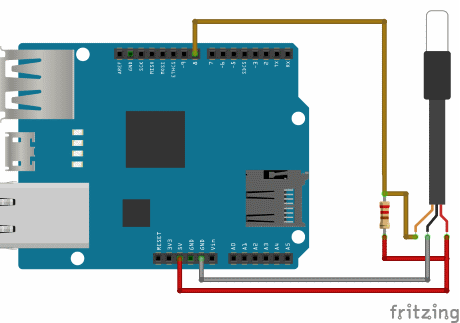
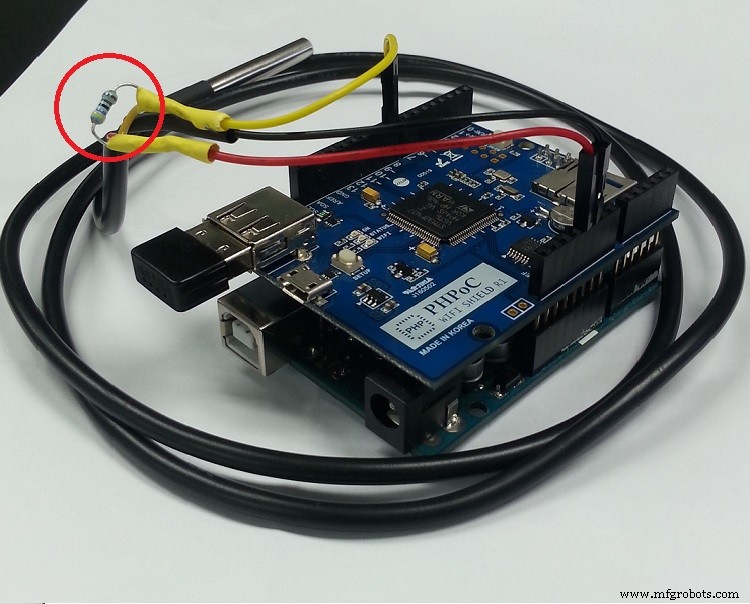
- Plaats de PHPoC WiFi-shield of PHPoC-shield op de Arduino.
- Bedraad volgens de afbeeldingen hieronder.
Productieproces
- De thermometer: van Galileo's thermoscoop tot moderne digitale sensoren
- Bluetooth-gecontroleerde Arduino Spybot bouwen
- FlickMote: Gebarengecontroleerde IR-afstandsbediening voor Slimme Huizen
- DIY Arduino TV-B-Gone: Universele TV-uit-schakelaar
- Bouw een Aangepaste LED Hoofdklok met Alarm – Zichtbaar vanaf 12 Meter
- Find Me: Slimme Item Locator met Arduino en Bluetooth
- Geoptimaliseerde Voedingsoplossingen voor Arduino Projecten
- Arduino Web-gecontroleerde MP3 Speler: Eenvoudige Audio Afspelen via Browser
- Arduino Boter-Kaas-Eieren met MAX7219 LED Matrix en Kartonnen Behuizing
- Bouw een Slimme Arduino Vierpotige Robot: Stap-voor-Stap Handleiding
- Beveilig uw Arduino met Webpatroonontgrendeling – Eenvoudige Setup & Remote Control