



DIY 2D Motion Racing Simulator met Arduino Nano & SG90 Servo's
Onderdelen en benodigdheden
| Onderdeel | Aantal |
|---|---|
| Arduino Nano R3 | 1 |
| SG90 Micro-servo motor | 2 |
Benodigde tools en machines
- Solderbout (generiek)
Apps en online diensten
- Arduino IDE
Over dit project
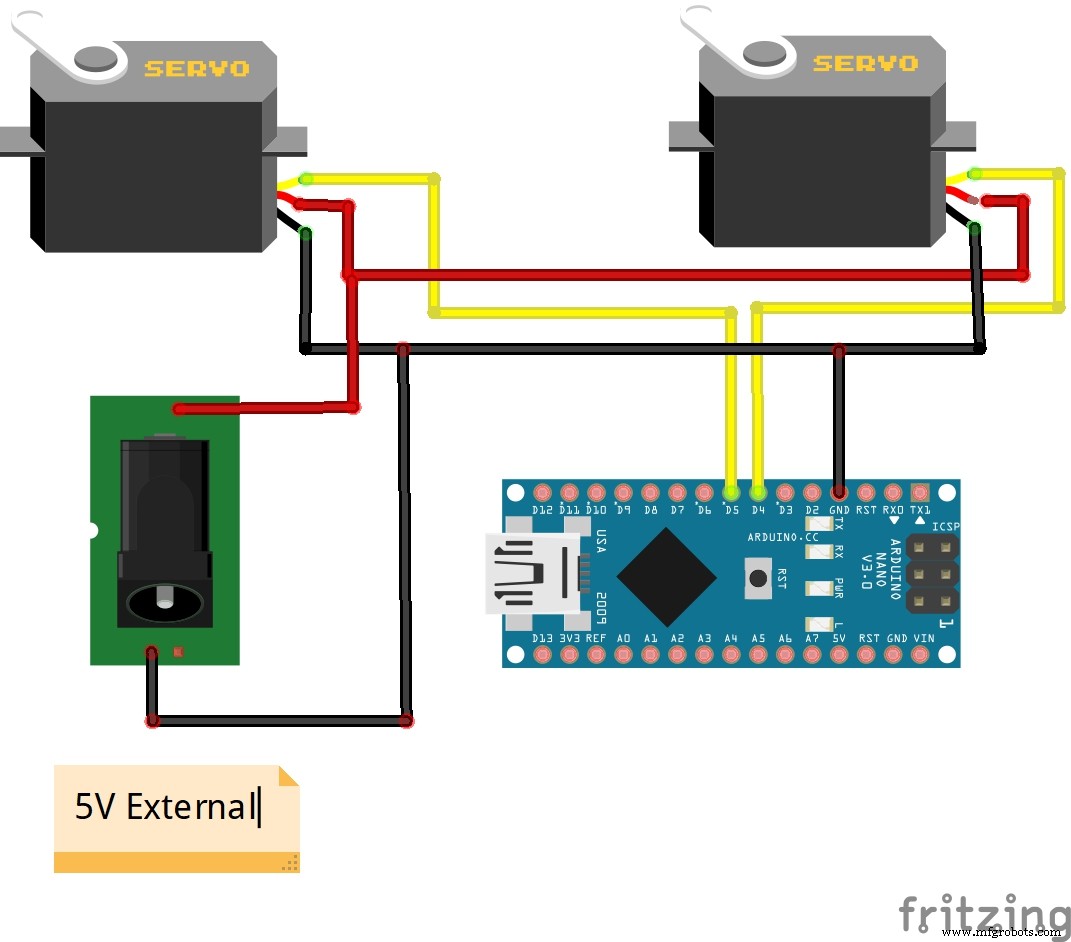
SimTools is een generieke Motion Simulator Software die meerdere hardware-interfaces kan besturen, waaronder Arduino. Deze combinatie wordt gebruikt in het project in de video. De hardware bestaat slechts uit een Arduino Nano microcontroller en twee goedkope SG90 micro servo-motoren. We hoeven alleen de onderstaande code te uploaden.
De benodigde gamedata wordt met behulp van SimTools software via de seriële poort naar de Arduino gestuurd. De Arduino activeert de servomotoren die het simulatieplatform volgens de gamedata bewegen. Dit is een kleine schaal van een twee-as simulator. Voor een echte simulator heb je motordrivers en grote servomotoren nodig.

Er zijn veel voorbeelden van dergelijke DIY-simulators, constructietekeningen en tips op xsimulator.net. De SimTools setup-procedure wordt in de video beschreven, maar je kunt ook de PDF-handleiding downloaden: SimTools User Manual v2.4.

SimTools draait in "Demo"-modus tot een geldige licentie is geregistreerd. De plugin voor Live for Speed is volledig operationeel voor testen terwijl SimTools in demomodus is. (De Live for Speed demo werkt ook voor het testen van SimTools.) Meer info en download Live for Speed: lfs.net/downloads.
SimTools download: xsimulator.net
Code
Arduino Code (C/C++)
//********************************************************************************************
// RC Model Servo
// Original code By EAOROBBIE (Robert Lindsay)
// Completely mangled by aarondc
// For free use for Sim Tool Motion Software
//********************************************************************************************
#include <Servo.h>
//#define DEBUG 1 // comment out this line to remove debugging Serial.print lines
const int kActuatorCount = 2; // hoeveel actuatoren we aansturen
// de letters ("namen") die SimTools stuurt om elke actuator te identificeren
// NB: de volgorde van de letters hier bepaalt de volgorde van de overige constanten kPins en kActuatorScale
const char kActuatorName[kActuatorCount] = { 'R', 'L' };
const int kPins[kActuatorCount] = {4, 5}; // pinnen waar actuatoren op aangesloten zijn
const int kActuatorScale[kActuatorCount][2] = {
  { 0, 179 }, // Rechter actuator schaling
  { 179, 0 }  // Linker actuator schaling
};
const char kEOL = '~'; // End of Line - scheidingsteken voor actuatorwaarden
const int kMaxCharCount = 3; // verzekering...
Servo actuatorSet[kActuatorCount]; // array van actuatoren
int actuatorPosition[kActuatorCount] = {90, 90}; // huidige actuatorposities, geïnitialiseerd op 90
int currentActuator; // houd bij welke actuator gelezen wordt van seriële poort
int valueCharCount = 0; // hoeveel waardekarakters gelezen (moet < kMaxCharCount)

// states voor state machine
// psReadActuator = volgende karakter vertelt ons de actuator
// psReadValue = volgende 3 karakters vertellen ons de waarde
enum TPortState { psReadActuator, psReadValue };
TPortState currentState = psReadActuator;

void setup() {
  for (int i = 0; i < kActuatorCount; i++)
    actuatorSet[i].attach(kPins[i]);
  for (int i = 0; i < kActuatorCount; i++)
    updateActuator(i);
  Serial.begin(9600);
}

void loop() {
  // deze code draait alleen als seriële data beschikbaar is
}

void serialEvent() {
  char tmpChar;
  int tmpValue;
  while (Serial.available()) {
    if (currentState == psReadActuator) {
      tmpChar = Serial.read();
      #ifdef DEBUG
      Serial.print("read in ");
      Serial.println(tmpChar);
      #endif
      for (int i = 0; i < kActuatorCount; i++) {
        if (tmpChar == kActuatorName[i]) {
          #ifdef DEBUG
          Serial.print("which is actuator ");
          Serial.println(i);
          #endif
          currentActuator = i;
          currentState = psReadValue;
          actuatorPosition[currentActuator] = 0;
          valueCharCount = 0;
          break;
        }
      }
    }
    if (currentState == psReadValue) {
      while ((valueCharCount < kMaxCharCount) && Serial.available()) {
        tmpValue = Serial.read();
        if (tmpValue != kEOL) {
          tmpValue = tmpValue - 48;
          if ((tmpValue < 0) || (tmpValue > 9))
            tmpValue = 0;
          actuatorPosition[currentActuator] = actuatorPosition[currentActuator] * 10 + tmpValue;
          valueCharCount++;
        } else break;
      }
      if (tmpValue == kEOL || valueCharCount == kMaxCharCount) {
        #ifdef DEBUG
        Serial.print("read in ");
        Serial.println(actuatorPosition[currentActuator]);
        #endif
        // schaal nieuwe positie tussen 0 en 179
        actuatorPosition[currentActuator] = map(actuatorPosition[currentActuator], 0, 255,
          kActuatorScale[currentActuator][0], kActuatorScale[currentActuator][1]);
        #ifdef DEBUG
        Serial.print("scaled to ");
        Serial.println(actuatorPosition[currentActuator]);
        #endif
        updateActuator(currentActuator);
        currentState = psReadActuator;
      }
    }
  }
}

void updateActuator(int thisActuator) {
  actuatorSet[thisActuator].write(actuatorPosition[thisActuator]);
}
Schema's
Productieproces
- Een DIY Infrarood Bewegingssensor Bouwen voor Raspberry Pi – Stapsgewijze Handleiding
- Bouw Je Eigen LUMAZOID: Een DIY Arduino Muziek Visualizer
- Een slimme voltmeter bouwen met Arduino en smartphone – Eenvoudig DIY-project
- Bouw een DIY VR-skateboard met Arduino, Google Cardboard en Bluetooth
- Slimme beweegactiverde waterpistool gebouwd met Arduino Nano
- Bouw een DIY Arduino Radionica EMR Behandelapparaat
- Bouw een draagbare RFID-deurslot met Arduino – Stap-voor-stap handleiding
- DIY 3-As CNC VMC: Bouw een Precisie Freesmachine
- Bouw een Contactloze Infrarood Thermometer met Arduino Nano en GY-906
- Bouw Je Eigen Vluchtsimulator Ruiterpedalen: Stap-voor-Stap DIY Handleiding
- DIY Arduino lengtemeter – nauwkeurig en eenvoudig te bouwen